Real Estate Open House Thank You Card Mailer
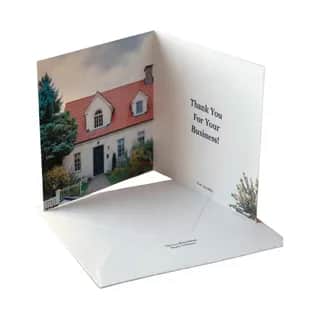
Automates personalized thank-you greeting cards for open house attendees. Pulls the latest attendee list from Google Sheets (names, addresses, and interests), scrapes the property listing photo AND property details from realtor.com, verifies address match, then creates and mails a custom folded greeting card to each attendee. The front features the listing photo, the back has the agent's logo, and the inside contains a personalized thank-you message with action-provoking phrases that reference ONLY factual property features verified from the listing.
Get Open House Attendee List
Search the user's Google Sheets for the most recent spreadsheet with 'Open House' or 'Attendee' in the title. Read all rows from the sheet. Expected columns include: First Name, Last Name, Address (street, city, state, zip), and optionally Interests or Notes about what the attendee liked about the property. IMPORTANT: The property address for the open house listing is contained in the title of the Google Sheet itself (e.g. 'Open House - 123 Main St, Springfield IL'). Extract the property address from the sheet title as it will be needed in the next step to find the listing photo on realtor.com. If no interests column exists, leave interests blank. Return all attendee data as structured records plus the property address extracted from the sheet title. Ask the user which sheet to use if multiple matches are found.

Search and Get Listing Photo
Using the property address extracted from the Google Sheet title in the previous step, search for the listing on realtor.com. First, navigate to realtor.com and use their search functionality with the full property address (e.g. '123 Main St, City, State ZIP'). From the search results, click into the matching property listing page. Then extract the main/hero listing photo URL (the primary exterior photo of the property). If the direct search doesn't work, try constructing a realtor.com search URL like: https://www.realtor.com/realestateandhomes-search/{City}_{State-Abbrev}/address-{Street-Address}. The resulting image URL will be used as the front cover of the greeting card. IMPORTANT: Also preserve the full HTML/markdown content of the listing page - it will be needed in the next step to extract property details. Do NOT ask the user for the listing URL - find it automatically using the property address from the spreadsheet title.

Verify Listing Address Match
Goal: Verify that the property listing found on realtor.com matches the exact address from the Google Sheet title before proceeding. | Inputs: Property address extracted from Google Sheet title AND the property details/address from the realtor.com listing page content. | Outputs: Confirmation that addresses match OR a clear error message if they don't match, including both addresses for comparison. | Constraints: Compare the full street address, city, state, and ZIP code. Both addresses must match exactly. If they don't match, STOP the workflow and alert the user with both addresses shown side by side. If multiple listings were found in the search results, verify you're looking at the correct one that matches the target address. Extract the listing address from the webpage content (look for patterns like '2475 Horace St, West Bloomfield Township, MI 48324' in the HTML). | Success criteria: Addresses match exactly and workflow can proceed safely. User is confident the correct property photo will be used on the greeting cards.
Workflow preview
What the agent will follow (tools, prompts, and workflow steps).
1. Call tool: Google Sheets (Get Open House Attendee List).
Instructions:
Search the user's Google Sheets for the most recent spreadsheet with 'Open House' or 'Attendee' in the title. Read all rows from the sheet. Expected columns include: First Name, Last Name, Address (street, city, state, zip), and optionally Interests or Notes about what the attendee liked about the property. IMPORTANT: The property address for the open house listing is contained in the title of the Google Sheet itself (e.g. 'Open House - 123 Main St, Springfield IL'). Extract the property address from the sheet title as it will be needed in the next step to find the listing photo on realtor.com. If no interests column exists, leave interests blank. Return all attendee data as structured records plus the property address extracted from the sheet title. Ask the user which sheet to use if multiple matches are found.
Parameters:
{}
2. Call tool: Live Web Page Browser (Search and Get Listing Photo).
Instructions:
Using the property address extracted from the Google Sheet title in the previous step, search for the listing on realtor.com. First, navigate to realtor.com and use their search functionality with the full property address (e.g. '123 Main St, City, State ZIP'). From the search results, click into the matching property listing page. Then extract the main/hero listing photo URL (the primary exterior photo of the property). If the direct search doesn't work, try constructing a realtor.com search URL like: https://www.realtor.com/realestateandhomes-search/{City}_{State-Abbrev}/address-{Street-Address}. The resulting image URL will be used as the front cover of the greeting card. IMPORTANT: Also preserve the full HTML/markdown content of the listing page - it will be needed in the next step to extract property details. Do NOT ask the user for the listing URL - find it automatically using the property address from the spreadsheet title.
Parameters:
{}
3. Apply the following prompt: Goal:
Verify that the property listing found on realtor.com matches the exact address from the Google Sheet title before proceeding.
Inputs:
Property address extracted from Google Sheet title AND the property details/address from the realtor.com listing page content.
Outputs:
Confirmation that addresses match OR a clear error message if they don't match, including both addresses for comparison.
Constraints:
Compare the full street address, city, state, and ZIP code. Both addresses must match exactly. If they don't match, STOP the workflow and alert the user with both addresses shown side by side. If multiple listings were found in the search results, verify you're looking at the correct one that matches the target address. Extract the listing address from the webpage content (look for patterns like '2475 Horace St, West Bloomfield Township, MI 48324' in the HTML).
Success criteria:
Addresses match exactly and workflow can proceed safely. User is confident the correct property photo will be used on the greeting cards.
4. Apply the following prompt: Goal:
Extract factual property details from the realtor.com listing page to ensure personalized messages only reference real, verified features.
Inputs:
Full HTML/markdown content from the realtor.com listing page.
Outputs:
A structured list of verified property features including: number of bedrooms, bathrooms, square footage, lot size, key rooms (kitchen, family room, backyard, office, etc.), notable features (bay windows, reading nooks, outdoor spaces, smart home features, etc.), and any other specific amenities mentioned in the listing description. Return ONLY features explicitly stated in the listing - do NOT infer or assume features.
Constraints:
Extract ONLY factual information directly stated in the listing. Look for: room descriptions, special features, appliances, outdoor amenities, architectural details, recent upgrades, and unique characteristics. Do NOT make assumptions. If a feature is not explicitly mentioned (e.g., 'gourmet kitchen', 'reading nook', 'wooded lot'), do NOT include it. Be specific - extract exact descriptions like 'granite countertops', 'stainless steel appliances', '0.32 acre lot', 'family room', etc. Categorize features by room/area where possible.
Success criteria:
All extracted features are directly verifiable from the listing text. No fabricated or assumed details. Features are organized in a clear, structured format that can be referenced when writing personalized messages.
5. Apply the following prompt: Goal:
For each attendee from the spreadsheet, generate a personalized inside-right message for their thank-you greeting card using ONLY verified property features.
Inputs:
List of attendees with first name, last name, mailing address, and optionally their interests/notes. The verified property features extracted from the listing. The agent's name from the spreadsheet or user input.
Outputs:
A structured list of card payloads, one per attendee, each containing: first_name, full mailing address (name, address1, city, state, postal_code), and the personalized inside_right_text message.
Constraints:
Each inside_right_text message must follow this format exactly:
'Thank you {First Name} for stopping by our open house. {Action-provoking phrase relating to buying the house and their interests}. Let's get you into your dream house.
Sincerely,
{Agent Name}'
CRITICAL: The action-provoking phrase MUST reference ONLY verified property features from the listing. Match attendee interests to actual features when possible. Examples:
- If interest is 'cooking' AND listing mentions kitchen features → reference those specific kitchen features
- If interest is 'reading' AND listing mentions a specific room/space → reference that space
- If interest is 'sports with kids' AND listing mentions backyard/family room → reference those spaces
- If no relevant features match the interest OR no interest is listed → use a general phrase about the property without fabricating details
NEVER mention features not in the verified listing (no 'gourmet kitchen' unless listing says it, no 'reading nook' unless it exists, no 'wooded lot' unless confirmed). Keep tone warm and persuasive while staying factually accurate.
Success criteria:
Every attendee has a unique, personalized message. Messages reference ONLY verified property features. Interests are matched to real features when possible. All messages follow the required format. No fabricated details.
6. For each attendee_card, complete the steps in this section once. Iterate over each attendee card payload prepared in the previous step. For each attendee, send a custom greeting card using the Send a Custom Greeting Card tool.
7. Call tool: Send a Custom Greeting Card (Mail Greeting Card).
Instructions:
Send a custom greeting card for the current attendee using these panel assignments:
- front_cover_image_url: Use the listing photo URL extracted from realtor.com in the earlier step.
- inside_left_text: Leave blank or empty (no content on this panel).
- inside_right_text: Use the personalized thank-you message generated for this attendee in the prepare step.
- back_image_url: Use the agent's logo URL: https://www.agentpmt.com/logo-w-text.svg
- font_style: 'handwritten' (for a warm, personal feel).
- orientation: 'horizontal'
- recipient_address: Use the attendee's mailing address (name, address1, city, state, postal_code).
Confirm each card is successfully submitted before moving to the next attendee.
Parameters:
{}
8. Apply the following prompt: Goal:
Summarize all cards sent and provide a completion report to the user.
Inputs:
Results from all greeting card send operations - success/failure status for each attendee.
Outputs:
A clear summary listing: total cards sent successfully, any failures with attendee name and reason, and order tracking info if available.
Constraints:
Be concise. Highlight any issues that need attention. Include the count of successful vs failed sends.
Success criteria:
User has a clear picture of which cards were sent and any that need follow-up.